Bạn có muốn ChatGPT của mình có thể đọc nội dung và ghi nội dung vào một tài liệu Google Docs? Bài hướng dẫn sau sẽ giúp bạn từng bước thiết lập kết nối giữa Google Docs và Custom GPT, chỉ trong vài thao tác đơn giản.
Tổng Quan Cách Hoạt Động
Chúng ta sẽ dùng Google Apps Script để tạo một API đơn giản lấy nội dung từ Google Docs và xuất ra ở dạng JSON. Sau đó, bạn sẽ cấu hình một Custom GPT có thể gọi API này thông qua GPT Actions.
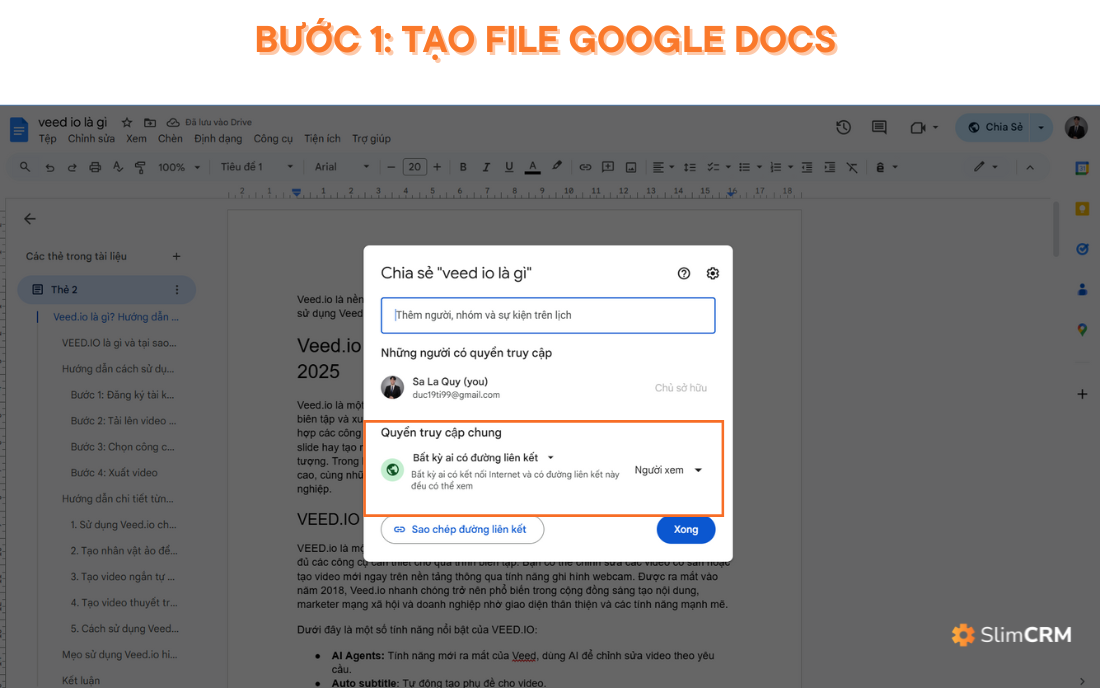
Bước 1: Tạo hoặc truy cập file Google Docs
Tạo hoặc truy cập một file Google Docs bạn muốn ChatGPT đọc nội dung.
Nhấn nút “Chia sẻ”, chuyển “Quyền truy cập chung” sang “Bất kỳ ai có liên kết” > “Người xem”.
Bước 2: Tạo API Lấy Nội Dung Từ Google Docs
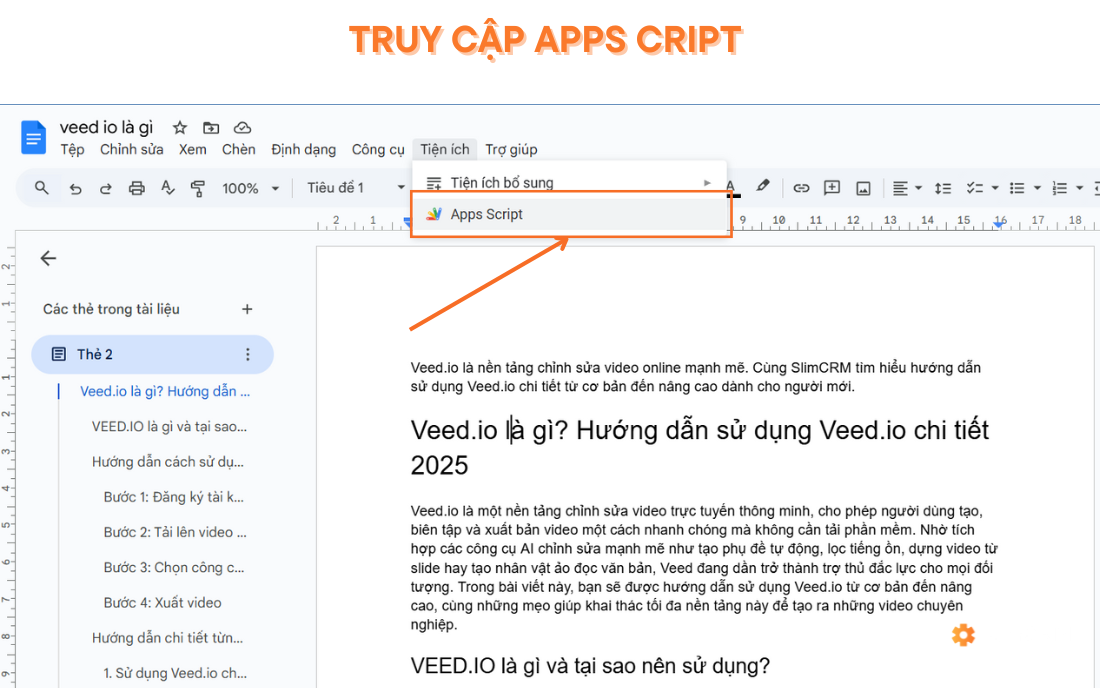
- Trong tài liệu Google Docs, vào menu:
Tiện ích > Apps Script.
- Xóa nội dung mặc định, dán đoạn mã sau vào và đổi mã ID file Google docs của bạn:
function doGet(e) {
const docId = e.parameter.id || '1UesvO7Fe2GdVnAZ9JKf4TbXcPKKcS_zzpM3yFXPGANE'; // fallback to default Doc ID
try {
const doc = DocumentApp.openById(docId);
const body = doc.getBody().getText();
return ContentService
.createTextOutput(JSON.stringify({ status: 'success', content: body }))
.setMimeType(ContentService.MimeType.JSON);
} catch (error) {
return ContentService
.createTextOutput(JSON.stringify({ status: 'error', message: error.message }))
.setMimeType(ContentService.MimeType.JSON);
}
}
function doPost(e) {
try {
const data = JSON.parse(e.postData.contents);
const docId = data.id || '1UesvO7Fe2GdVnAZ9JKf4TbXcPKKcS_zzpM3yFXPGANE'; // fallback to default Doc ID
const content = data.content;
if (!content) {
throw new Error("Missing 'content' in request body.");
}
const doc = DocumentApp.openById(docId);
const body = doc.getBody();
body.setText(content); // Replace all existing content with new text
return ContentService
.createTextOutput(JSON.stringify({ status: 'success', message: 'Content written successfully.' }))
.setMimeType(ContentService.MimeType.JSON);
} catch (error) {
return ContentService
.createTextOutput(JSON.stringify({ status: 'error', message: error.message }))
.setMimeType(ContentService.MimeType.JSON);
}
}
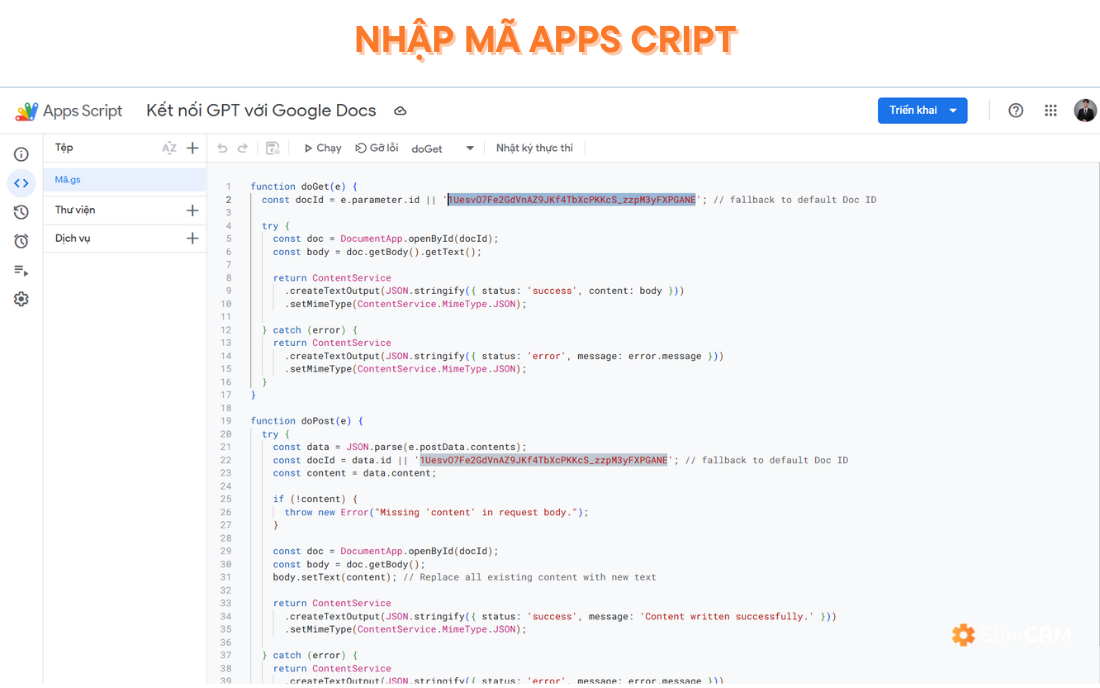
🔍 ID của Google Doc nằm trong đường dẫn, ví dụ:
https://docs.google.com/document/d/**ID_CUA_BAN**/edit
- Ngoài ra, bạn cũng có thể dùng ChatGPT tạo đoạn mã Apps script với Prompt sau: "Please write JavaScript code for Google Apps Script to retrieve the text content of a Google Doc by its ID and make it accessible via a web app URL in JSON format. The code should include a doGet function, which will allow accessing the document content when the web app URL is visited. Here is the link to the Google Doc for testing: [Nhập link google docs của bạn]"
Bước 3: Triển Khai Script Thành Web API
- Nhấn nút Triển khai > Tùy chọn triển khai mới.
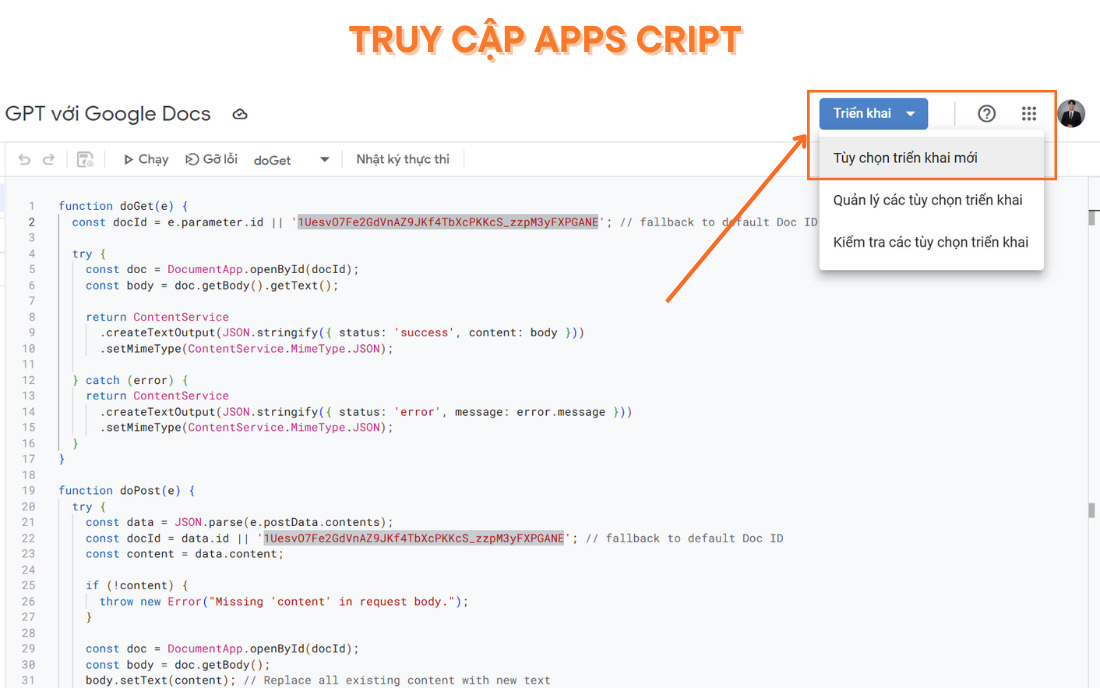
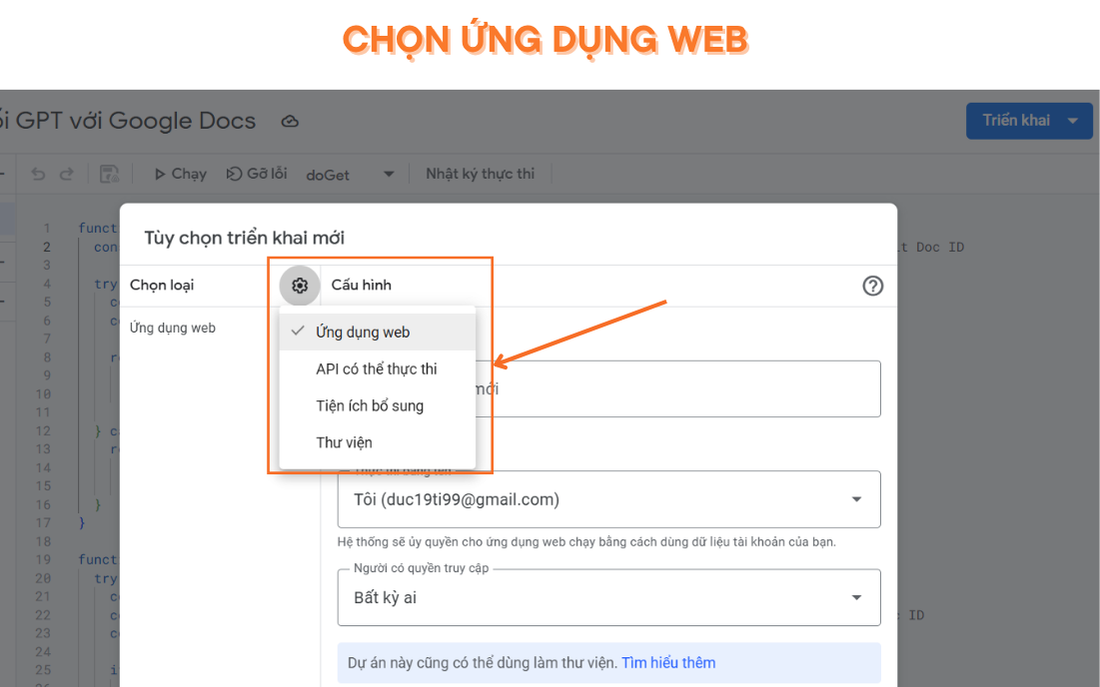
- Chọn loại triển khai là Ứng dụng web (Web App).
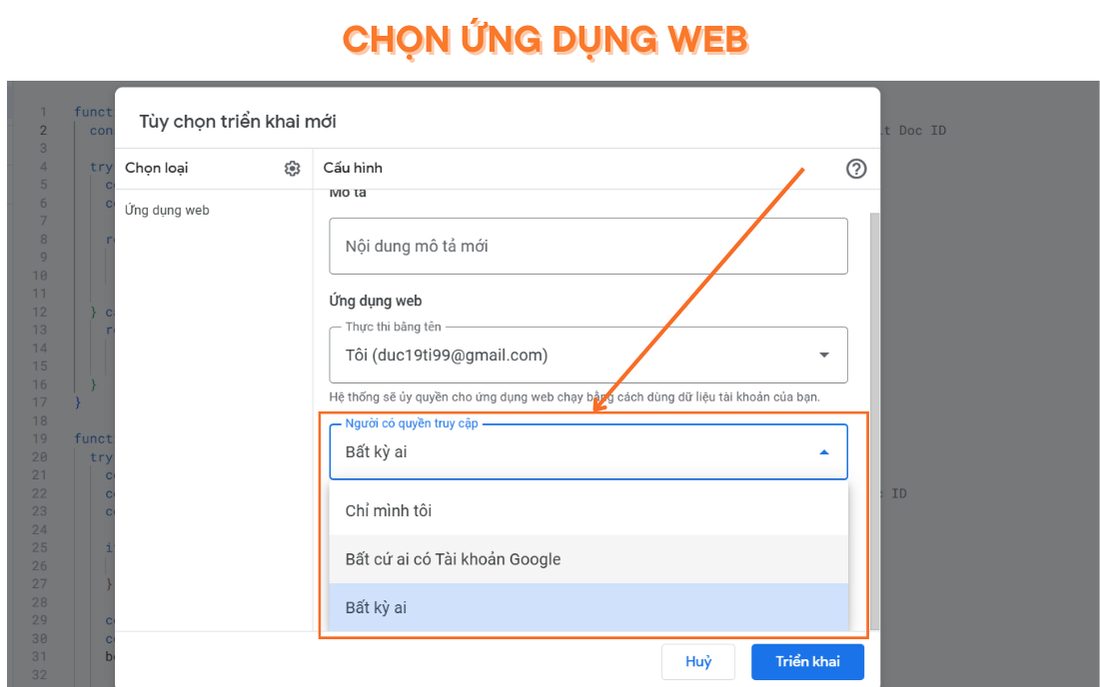
- Trong mục Ai có thể truy cập, chọn Bất kỳ ai.
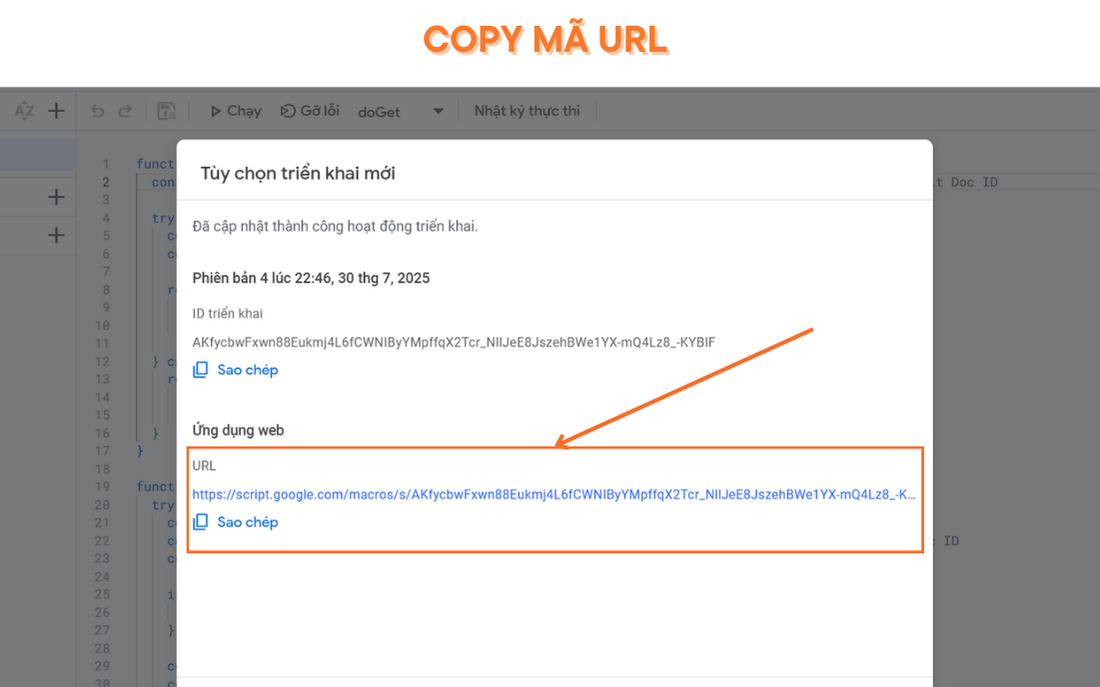
- Nhấn Triển khai và sao chép URL Web App.
Bước 4: Kiểm Tra API
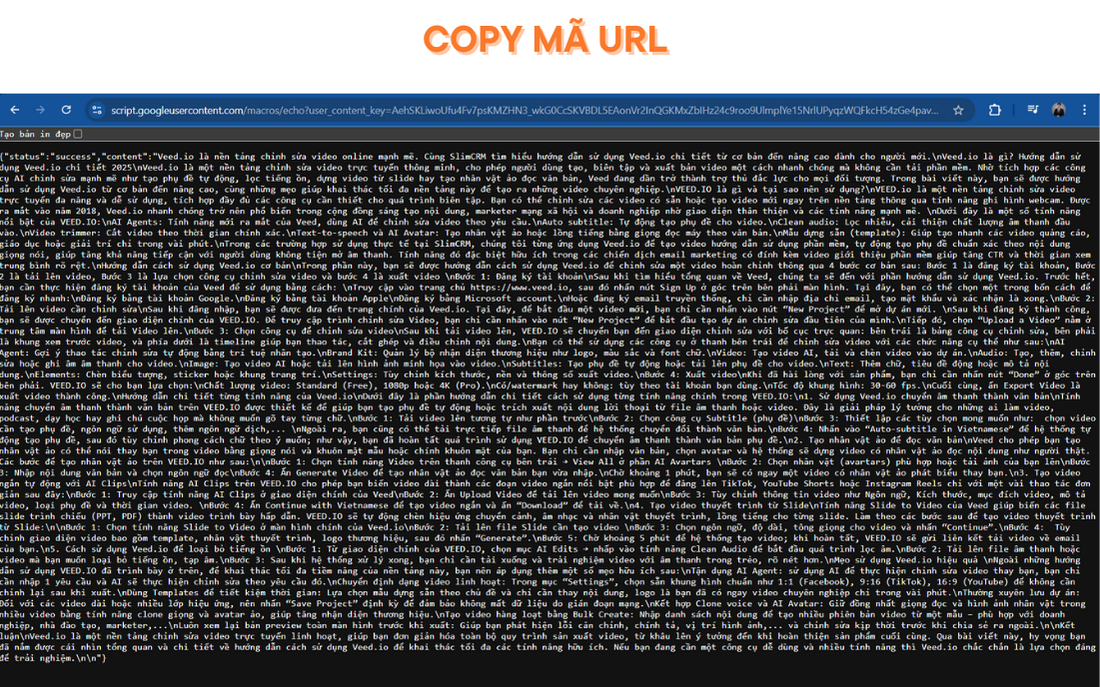
Dán URL Web App vào trình duyệt. Nếu thấy nội dung tài liệu được trả về ở dạng JSON, bạn đã làm đúng!
Bước 5: Tạo Custom GPT Trên ChatGPT
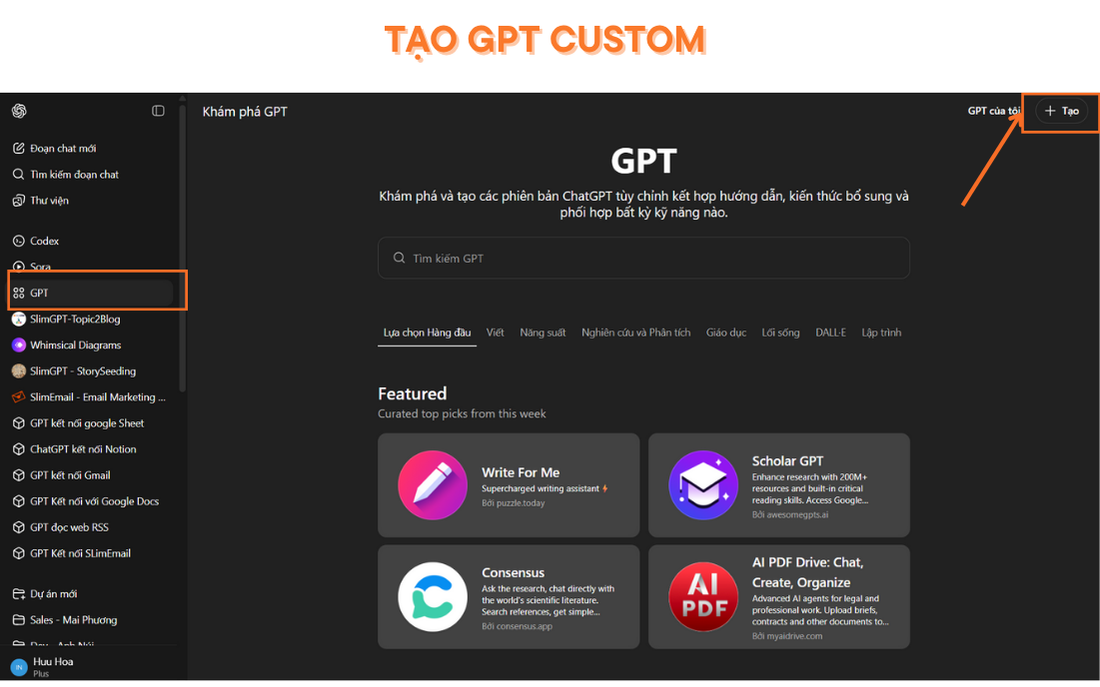
- Vào trang Explore GPTs > Chọn Tạo (Create) để tạo GPT mới.
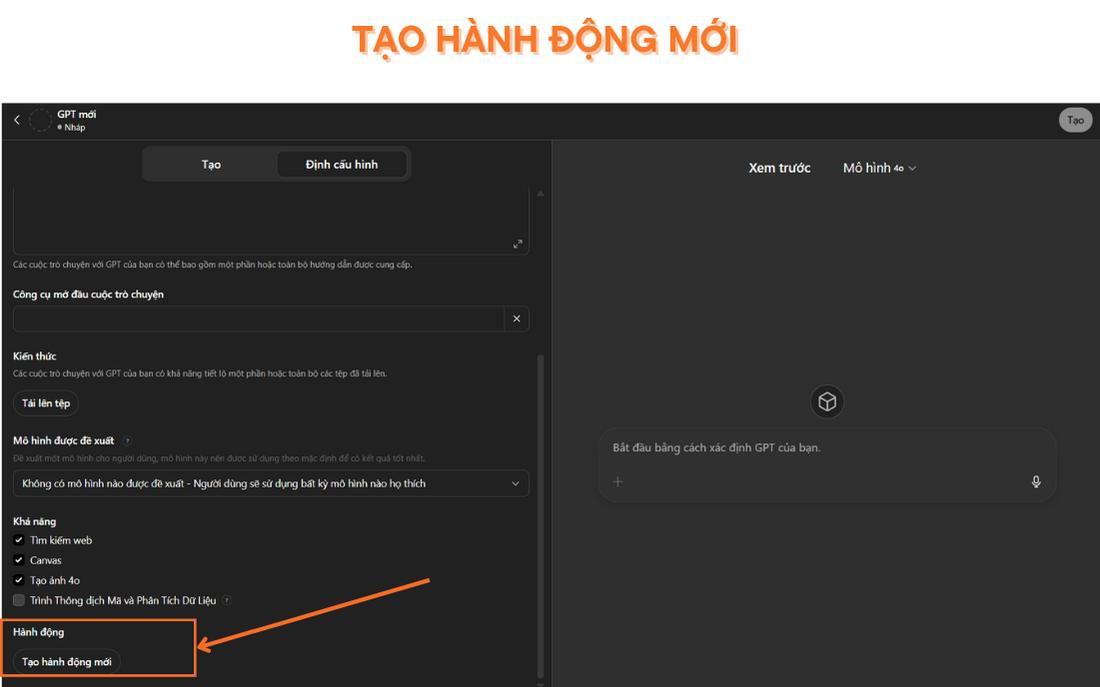
- Trong phần cấu hình, tìm mục Actions > Create new action.
Nếu bạn muốn hiểu rõ hơn cách hoạt động của Custom GPT & API, cũng như xây dựng hệ thống AI cá nhân chuyên nghiệp?
👉 Thì có thể tham khảo khóa học: GPT Mastery – Xây dựng nhân viên AI 24/7
Khóa học mini chuyên sâu về Prompt nâng cao, GPT Actions, Custom GPT, API và tự động hóa thực tế.
Bước 6: Tạo OpenAPI Schema Cho API
- Nhờ ActionsGPT tạo schema từ API vừa tạo, ví dụ:
Create a schema for a Google Doc API with path: /exec. Here’s my Apps Script code and Web App URL: [Dán Code Apps Script và URL Web App tại đây]
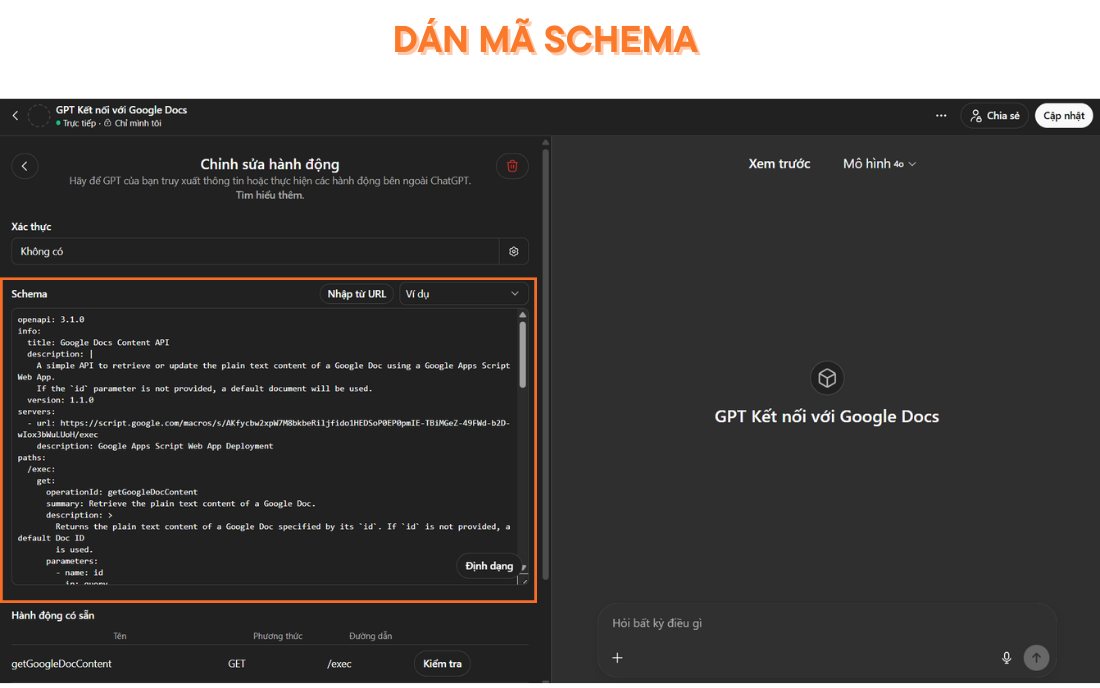
Bạn cũng có thể sử dụng mẫu sau và thay URL Web App của bạn vào:
openapi: 3.1.0
info:
title: Google Docs Content API
description: |
A simple API to retrieve or update the plain text content of a Google Doc using a Google Apps Script Web App.
If the `id` parameter is not provided, a default document will be used.
version: 1.1.0
servers:
- url: https://script.google.com/macros/s/AKfycbw2xpW7M8bkbeRiljfido1HEDSoP0EP0pmIE-TBiMGeZ-49FWd-b2D-wIox3bWuLUoH/exec
description: Google Apps Script Web App Deployment
paths:
/exec:
get:
operationId: getGoogleDocContent
summary: Retrieve the plain text content of a Google Doc.
description: >
Returns the plain text content of a Google Doc specified by its `id`. If `id` is not provided, a default Doc ID
is used.
parameters:
- name: id
in: query
required: false
description: The ID of the Google Doc to retrieve.
schema:
type: string
responses:
"200":
description: JSON response with the document content or an error message.
content:
application/json:
schema:
type: object
properties:
status:
type: string
enum:
- success
- error
content:
type: string
description: Plain text content of the Google Doc (only present if status is success).
message:
type: string
description: Error message (only present if status is error).
post:
operationId: writeGoogleDocContent
summary: Write plain text content to a Google Doc.
description: >
Writes plain text content to the Google Doc specified by its `id`. If `id` is not provided, a default Doc ID is used.
The entire document will be replaced with the provided content.
requestBody:
required: true
content:
application/json:
schema:
type: object
properties:
id:
type: string
description: The ID of the Google Doc to update (optional).
content:
type: string
description: The plain text content to write into the Google Doc.
required:
- content
responses:
"200":
description: JSON response indicating the result of the write operation.
content:
application/json:
schema:
type: object
properties:
status:
type: string
enum:
- success
- error
message:
type: string
description: Message describing the result.
Bước 7: Hoàn Tất Custom GPT
Dán OpenAPI schema vừa tạo vào mục Schema của GPT Actions.
Cấu hình GPT: tên, hình ảnh đại diện, hướng dẫn...
Công cụ mở đầu cuộc trò chuyện: “Tóm tắt nội dung trong Google Docs” hoặc “Doc này nói gì về…?”
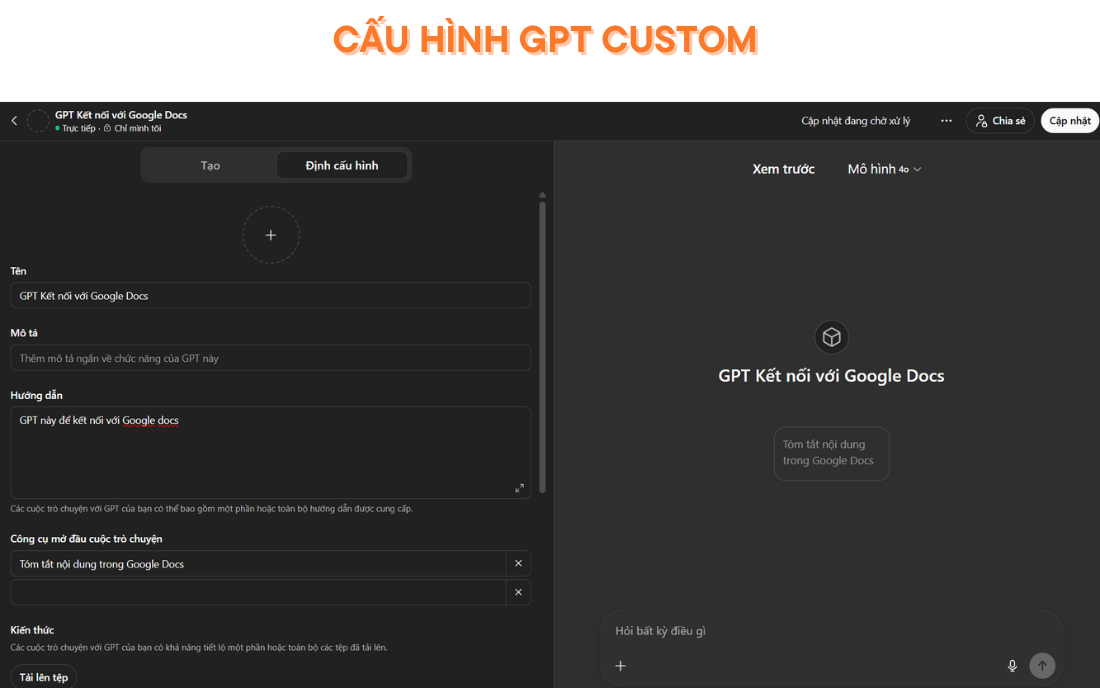
- Ấn tạo GPT ở góc phải bên trên
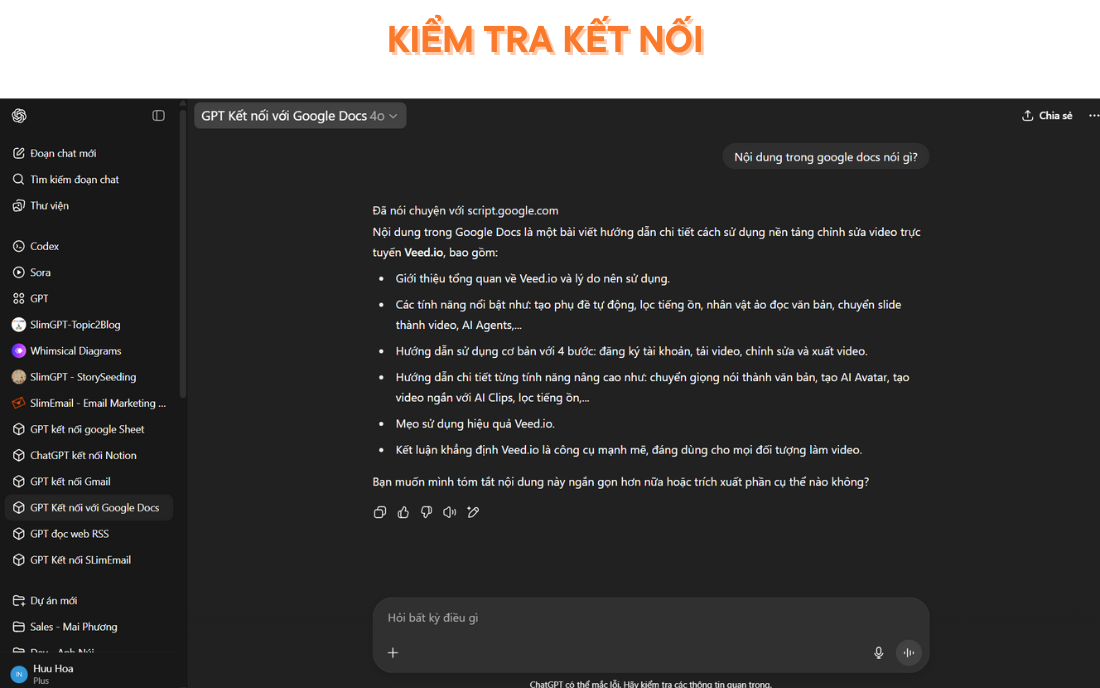
Bước 8: Thử Nghiệm Custom GPT
Hỏi GPT một câu liên quan đến nội dung trong Google Doc mà bạn đã tạo, ví dụ:
“Nội dung trong google docs nói gì?”
Bạn chỉ cần ấn cho phép, sau đó GPT sẽ gọi API và truy xuất nội dung từ Google Docs theo thời gian thực.
Tổng Kết
Với vài bước đơn giản, bạn đã có thể tạo một Custom GPT có khả năng truy xuất dữ liệu luôn cập nhật và ghi dữ liệu vào Google Docs — giúp mở ra hàng loạt khả năng tự động hóa và tích hợp thông minh hơn cho công việc.
👉 Sẵn sàng nâng cấp kỹ năng AI lên một tầm cao mới?
Tham gia ngay khóa học chuyên sâu SlimGPT Mini Course – Build Your AI Workforce:
Học cách kết nối GPT với bất kỳ ứng dụng nào, xây dựng trợ lý AI làm việc không lượng — toàn bộ chỉ trong 2 buổi học thực chiến.
