As ChatGPT becomes an integral part of our daily workflows—from coding and content creation to academic research—the data stored within these chats becomes increasingly valuable. However, users often face a common frustration: how to export ChatGPT conversations effectively without losing formatting, code blocks, or mathematical equations.
Whether you are trying to move a brainstorming session into Notion, save a research thread as a PDF, or move a table into Word, the native "copy-paste" method often results in broken formatting and frustration.
In this comprehensive guide, we will explore every method available to export ChatGPT chat history. We will cover OpenAI’s native tools, manual workarounds, and the most efficient browser extensions—including the powerful "Export chatgpt conversation to PDF, Notion, Word, Google Docs, and More" tool—to help you manage your AI data like a pro.
Why Export ChatGPT Conversations?
Before diving into the "how-to," it is essential to understand the "why." Your chat history is more than just temporary text; it is often a knowledge base. Here is why savvy users are looking for ways to export chatgpt conversation data:
Backup and Archiving: OpenAI stores your chats, but having a local copy (PDF or Word) ensures you never lose critical data if the service goes down or if you accidentally delete a chat.
Content Creation: Writers often draft in ChatGPT. Exporting directly to Microsoft Word or Google Docs streamlines the editing process.
Knowledge Management: Moving ChatGPT to Notion allows you to build a searchable second brain of AI-generated insights.
Academic and Technical Documentation: Developers and students need to preserve complex formatting, such as LaTeX equations and code snippets, which often break during a standard copy-paste.
Method 1: The All-in-One Extension (Recommended)
While there are manual ways to save chats, they are often time-consuming. If you are looking for efficiency and formatting preservation, using a dedicated browser extension is the superior choice.
Why Use This Extension?
Unlike basic "print to PDF" methods that often cut off text or ruin layout, this specific chatgpt to pdf extension is designed to understand the structure of an AI conversation. It recognizes code blocks, headers, and markdown, converting them into your desired format seamlessly.
Step-by-Step Guide
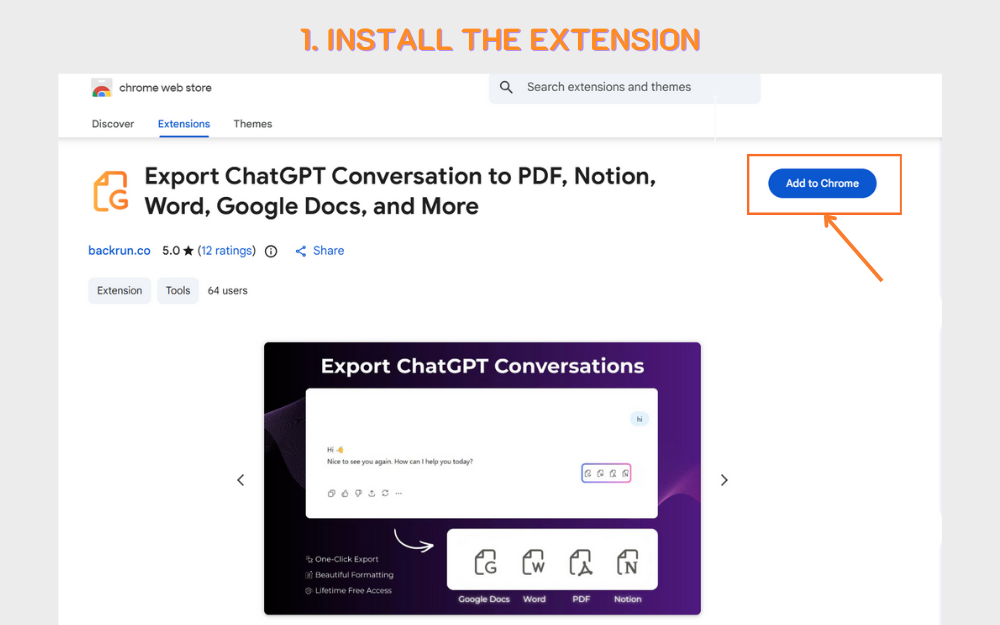
1. Install the Extension: Search for "Export chatgpt conversation to PDF, Notion, Word, Google Docs, and More" in your browser’s extension store (Chrome Web Store, Edge Add-ons, etc.) and click Add to Browser.
2. Open Your Chat: Navigate to the specific ChatGPT conversation you wish to save.
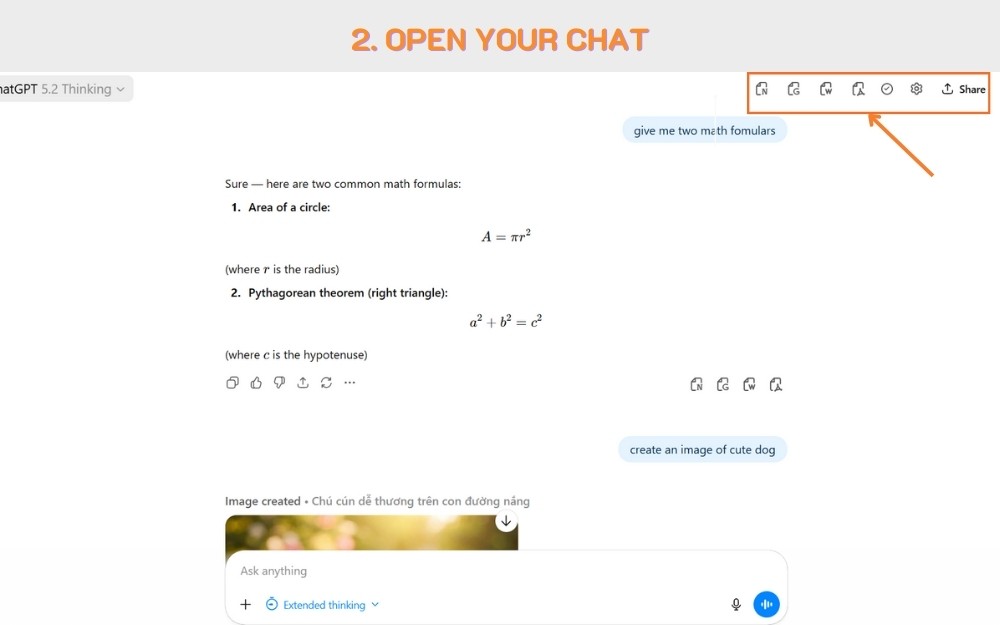
3. Select Your Format: Look for the extension icon in your browser toolbar or the embedded buttons within the ChatGPT interface. You will typically see options such as:
Export to PDF: Best for archiving and sharing read-only copies.
Export to W, Google Docs: Ideal if you need to edit the text later.
Export to Notion: Perfect for building a database of your chats.
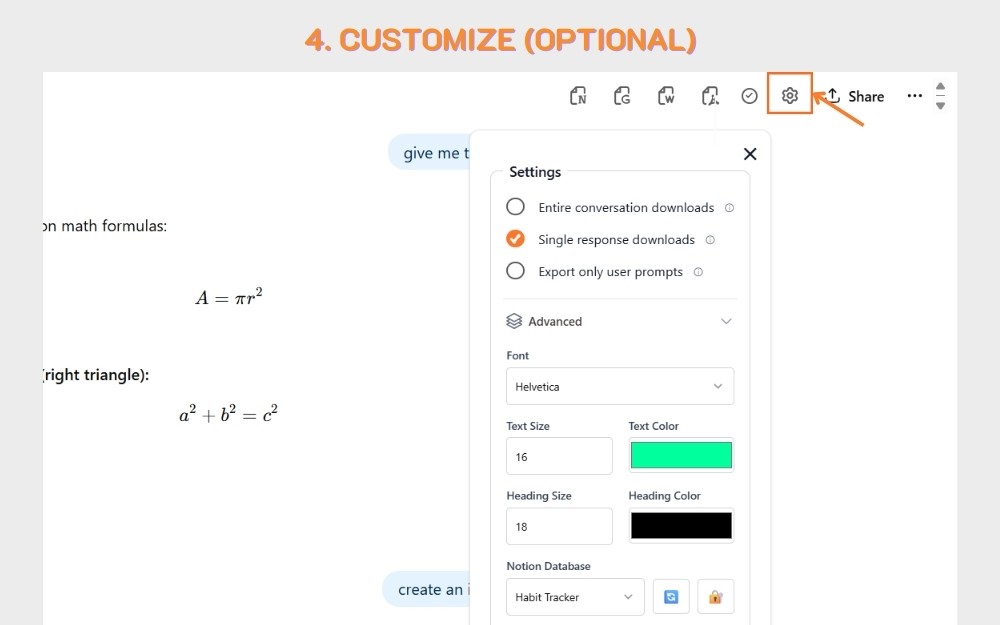
4. Customize (Optional): Many advanced users prefer this tool because it often allows you to select specific parts of the conversation rather than the whole thread.
5. Download: Click the export button. The file will either download to your computer or sync directly to your connected account (e.g., Notion or Google Docs).
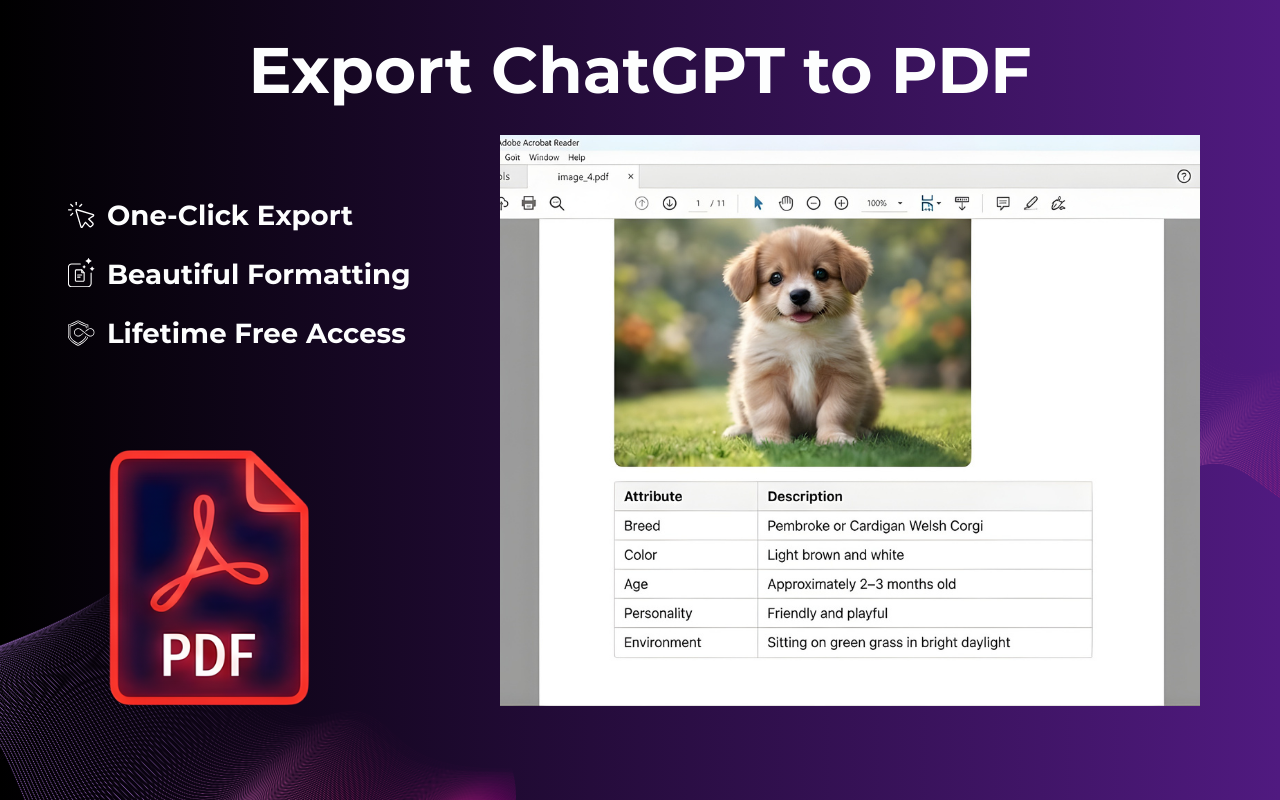
Pro Tip: This is the best method if you are searching for how to copy a table from chatgpt to word without the borders disappearing, as the extension handles the table rendering during the conversion process.
Method 2: The Native "Export Data" Feature (OpenAI Official)
If you need to export chatgpt chat history in its entirety—meaning every single conversation you have ever had—OpenAI provides a built-in feature. However, this method is better for developers or data hoarders because it provides raw data, not pretty documents.
How to use the Native Export:
Log in to ChatGPT.
Click on your Profile Icon (usually at the top right or bottom left).
Select Settings > Data Controls.
Look for the Export Data option and click Export.
Confirm Request: OpenAI will send a confirmation email.
Download the Zip File: Once received, click the link in your email to download a .zip file.
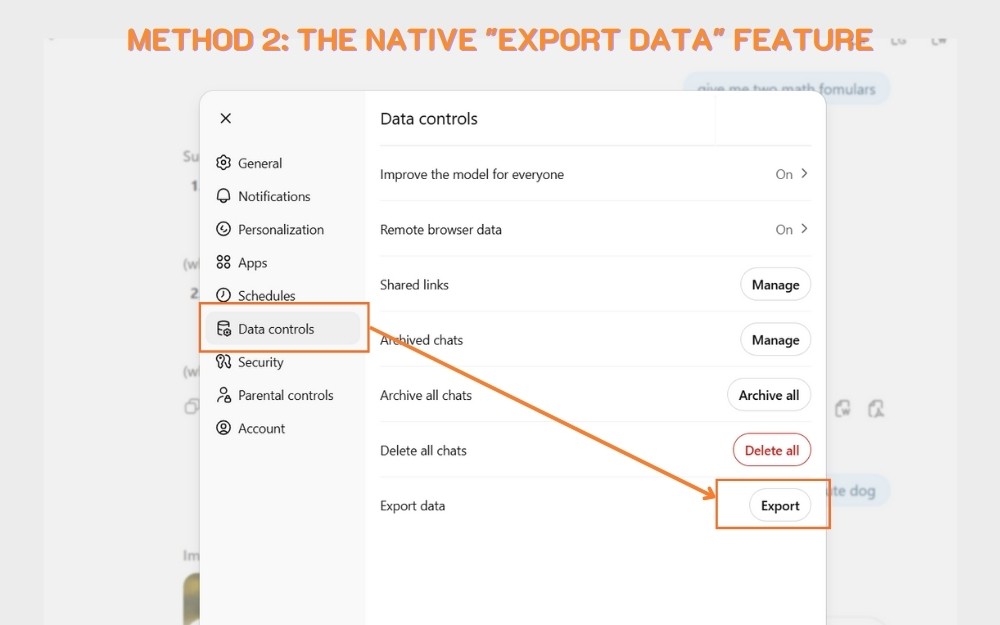
Understanding the Output
When you extract the zip file, you will find a file named conversations.json. This is not a readable Word doc or PDF. It is a structured data file containing your raw text.
Pros: It backs up everything.
Cons: You need a JSON viewer or a script to convert this into a readable format. It is not suitable for users asking how to copy equations from chatgpt to word for immediate homework or report usage.
Method 3: The "Share Link" Feature
If your goal is to share a conversation with a colleague rather than saving a file, the "Share Link" feature is the fastest native option.
Open the chat you want to share.
Click the Share icon (usually an arrow pointing up or a link icon) at the top of the chat interface.
Click Create Link.
Copy the URL and send it.
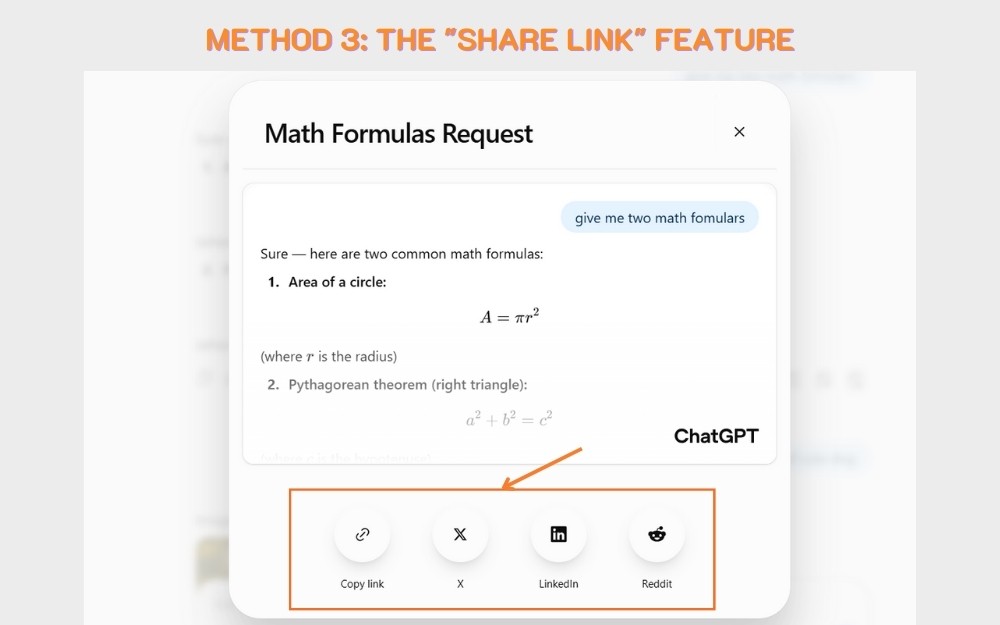
Note: This creates a read-only web page. The recipient cannot see your future messages in that thread unless you create a new link. This does not help if you need to export chatgpt conversation to an offline file.
Method 4: Manual PDF Creation (Print to PDF)
For users who do not want to install extensions and only need a quick visual record, you can use your browser’s printing capabilities.
Open the conversation.
Press Ctrl + P (Windows) or Cmd + P (Mac).
In the destination printer dropdown, select Save as PDF.
Adjust the margins to "Minimum" to try and fit more text on the screen.
Click Save.
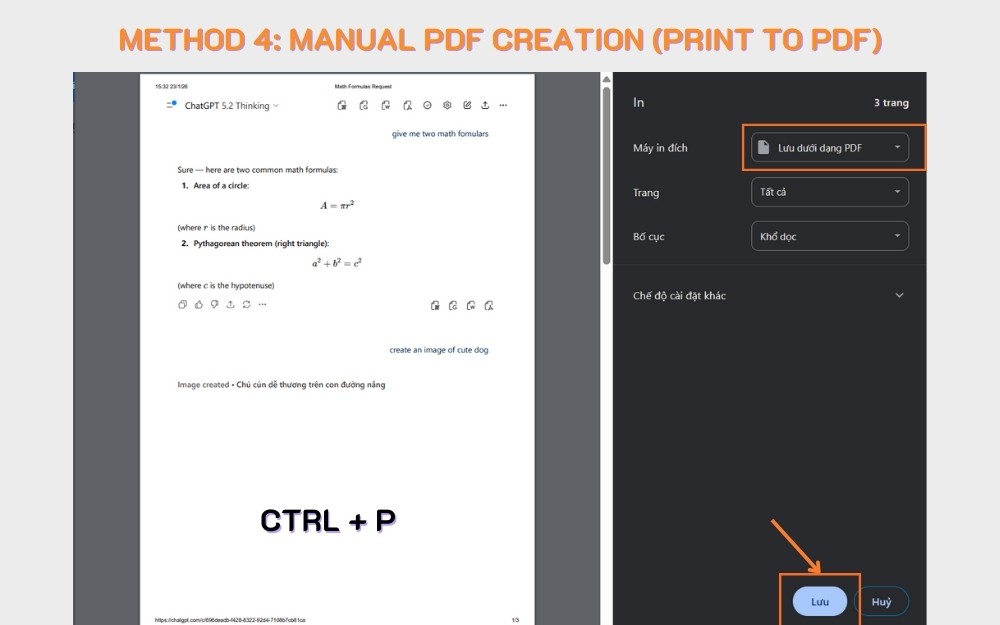
The Downside: This method often breaks code blocks, splits tables across pages awkwardly, and includes the ChatGPT sidebar and input box, making the document look cluttered. For a cleaner look, refer back to Method 1 using the "Export chatgpt conversation to PDF, Notion, Word, Google Docs, and More" extension.
Method 5: Copying Text to Google Docs and Word
The most common search intent for how to export chatgpt conversations is simply getting the text into a document editor. While "Select All + Copy" seems obvious, it often fails with complex formatting.
When you copy text from ChatGPT and paste it into Word or Google Docs, you bring along the dark mode background (if enabled) or web formatting.
Highlight the text in ChatGPT.
Copy (Ctrl+C / Cmd+C).
Go to Word or Google Docs.
Paste without formatting:
Warning: This removes all formatting, including bold text, tables, and code blocks. If you need to keep tables and equations intact, this method is not recommended.
Method 6: Advanced Workflows
For developers and power users, simple documents aren't enough. You need structured data.
ChatGPT to Notion
Building a "Second Brain"? Moving data from ChatGPT to Notion is popular for knowledge management.
Manual: Notion natively supports Markdown. If you copy a chat (headers, code blocks) and paste it into Notion, it usually formats perfectly.
Extension: Use a ChatGPT to Notion extension (like "Save to Notion") to clip specific answers directly into a Notion Database property with one click.
Developer Scripts (GitHub & Markdown)
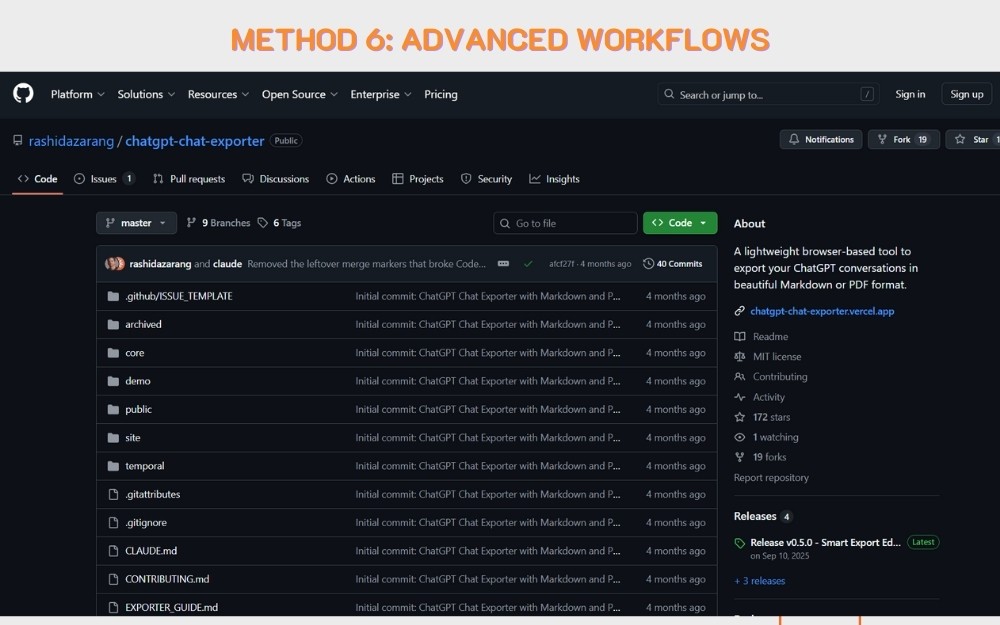
If you want total control, the open-source community provides excellent tools. Repositories like pionxzh/chatgpt-exporter (available on GitHub) allow you to use userscripts to:
Export ChatGPT conversation directly to Markdown (.md) files.
Export to clean JSON for custom applications. This is the best method for developers who want to push chat documentation directly into a GitHub repository or an Obsidian vault.
Conclusion
Exporting is easiest when you match the method to the goal. Use OpenAI’s Native Export for full backups, the "Share Link" feature for quick sharing, and dedicated extensions when you need to export ChatGPT conversations to Word or Notion with perfect formatting.
If you struggle with specific elements—like how to copy equations from ChatGPT to Word or keeping tables intact—investing time in a proper extension (like the Export ChatGPT conversation to PDF, Notion, Word, Google Docs, and More tool) will turn a frustrating task into a one-click workflow.
FAQs About How to Export ChatGPT Conversations
1. Is there a way to export ChatGPT conversations?
Yes. You can use OpenAI’s official "Export Data" feature in Settings to download your entire history as a JSON file. For readable formats, you can use browser extensions to save chats as PDF or Word, or simply use the "Share Link" feature to create a read-only web page of your conversation.
2. How to copy equations from chatgpt to word correctly?
If you are struggling with how to copy equations from chatgpt to word, do not just copy-paste. First, ask ChatGPT to "convert this equation to MathML" or LaTeX. In Word, press Alt + = to open the Equation Editor, paste the code, and it will render perfectly as a mathematical formula.
3. How to copy a table from chatgpt to word without losing borders?
The trick for how to copy a table from chatgpt to word is in the pasting method. Highlight and copy the table in ChatGPT, then in Word, right-click and select "Keep Source Formatting" (the icon with a paintbrush) or use Paste Special > HTML Format. This preserves the grid lines and layout.
4. How to convert chatgpt to google doc?
To understand how to convert chatgpt to google doc, you have two options. The manual way is to copy the text and use Ctrl + Shift + V (Paste without formatting) in Docs to clean up the background. The faster way is to install a browser extension like "Export to Google Docs," which adds a one-click button inside ChatGPT to send your chat directly to your Drive.
